





What Is Slide Transition Animation in PowerPoint and How Does It Work
Slide Transition Animation In Powerpoint is an important presentation feature that enhances the visual flow between slides. It helps in creating smooth and engaging presentations by adding movement effects when one slide changes to another. In computer science and digital communication, understanding presentation tools like PowerPoint is essential for effective information delivery. Slide transitions improve audience engagement, maintain attention, and make presentations more professional. Learning how slide transition animation works enables students to design visually appealing slides for academic, professional, and educational purposes.
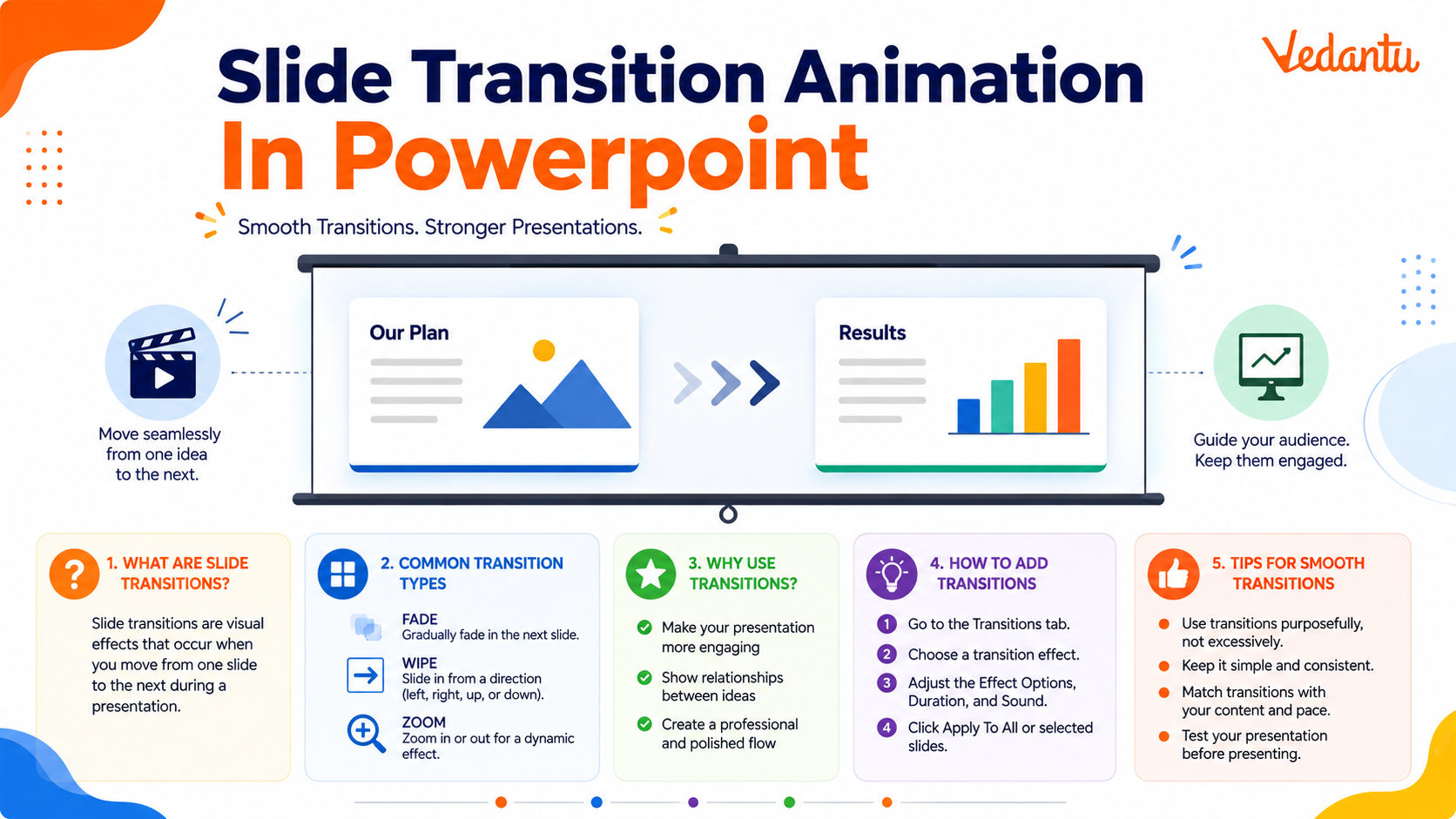
Definition and Meaning
Slide Transition Animation In Powerpoint definition refers to the visual effects that occur when moving from one slide to another during a presentation. These effects control how the current slide exits and how the next slide appears on the screen.
- Slide - A single page of a PowerPoint presentation.
- Transition - The visual effect used while moving from one slide to another.
- Animation - Movement effects applied to objects or slides.
- Transition Duration - The time taken for the transition effect to complete.
How It Works / Working Principle
The Slide Transition Animation In Powerpoint working is based on predefined animation effects provided by the software. When a presenter moves to the next slide, PowerPoint applies the selected transition effect automatically.
- Create or open a PowerPoint presentation.
- Select the slide where the transition effect needs to be applied.
- Click on the Transitions tab in the menu bar.
- Choose a transition effect from the available gallery.
- Adjust settings such as duration, sound, and timing.
- Preview the transition and apply it to selected or all slides.
PowerPoint uses internal animation engines to render these effects smoothly during the slideshow. The transitions are executed when the user clicks the mouse, presses a key, or after a set time delay.
Types and Classification
There are various Slide Transition Animation In Powerpoint types available. They are generally grouped based on complexity and visual style.
Common Slide Transition Types
| Type | Description | Example |
|---|---|---|
| Subtle Transitions | Simple and smooth effects | Fade, Push, Wipe |
| Exciting Transitions | More dynamic and noticeable effects | Split, Reveal, Random Bars |
| Dynamic Content | Transitions that affect only content, not background | Pan, Conveyor |
Each transition type serves a different presentation style. Subtle transitions are suitable for formal presentations, while exciting transitions are used for creative or engaging slideshows.
Features and Characteristics
- Wide variety of built in transition effects.
- Customizable duration and timing settings.
- Option to add sound effects during transitions.
- Preview feature to test the effect before finalizing.
- Can be applied to individual slides or all slides at once.
- Supports automatic slide advancement.
Advantages
- Enhances visual appeal of presentations.
- Improves audience engagement and attention.
- Creates smooth flow between slides.
- Makes presentations look professional.
- Easy to use without technical expertise.
Disadvantages / Limitations
- Excessive use can distract the audience.
- Complex transitions may slow down older systems.
- Overuse can make presentations look unprofessional.
- May increase file size slightly.
Applications and Use Cases
- School and college project presentations.
- Business meetings and corporate presentations.
- Training sessions and workshops.
- Marketing and product demonstrations.
- Online webinars and virtual conferences.
Quick Facts About Slide Transition Animation In Powerpoint
| Category | Details |
|---|---|
| Type | Presentation Software Feature |
| Developed By | Microsoft |
| Used For | Enhancing slide navigation visually |
| Platform Support | Windows, macOS, Web, Mobile |
| Common Uses | Educational and Business Presentations |
These quick facts summarize essential information about Slide Transition Animation In Powerpoint in computer science and digital presentation tools.
Interesting Facts About Slide Transition Animation In Powerpoint
- The Morph transition creates smooth object movement between slides.
- Transitions are different from object animations applied within a slide.
- Transitions can be timed to run automatically in kiosk mode.
- Professional presenters often use minimal transitions for clarity.
- Transition speed can be adjusted to create dramatic effects.
- Sound effects can be added but are rarely used in formal presentations.
- Slide transitions are rendered in real time during slideshow mode.
Conclusion
Slide Transition Animation In Powerpoint plays a significant role in improving the quality and effectiveness of digital presentations. It ensures smooth slide changes, enhances visual appeal, and keeps the audience engaged. Understanding its types, features, and proper usage helps students and professionals create impactful presentations. In computer science education, mastering presentation tools like PowerPoint is essential for clear communication and professional growth in the digital world.
FAQs on Slide Transition Animation in PowerPoint Explained for Students and Professionals
1. What is Slide Transition Animation in PowerPoint?
Slide Transition Animation in Microsoft PowerPoint is a visual effect that controls how one slide changes to the next during a slideshow presentation.
- It is a built-in feature of presentation software.
- Applied between slides, not to individual objects.
- Improves visual flow and user engagement.
- Commonly used in school projects, business reports, and seminars.
2. How do slide transitions work in PowerPoint?
Slide transitions work by applying predefined animation effects that trigger when moving from one slide to another in slideshow mode.
- Go to the Transitions tab in the ribbon interface.
- Select a transition effect such as Fade or Push.
- Set duration and sound options.
- Choose On Mouse Click or After timing for automatic playback.
3. What are the different types of slide transitions in PowerPoint?
PowerPoint provides multiple types of slide transitions that define how slides visually appear during a presentation.
- Subtle transitions such as Fade and Wipe.
- Exciting transitions such as Split and Checkerboard.
- Dynamic content transitions such as Morph (in newer versions).
- Customizable direction and timing options.
4. What is the difference between slide transition and animation in PowerPoint?
The key difference is that slide transitions occur between slides, while animations apply to objects within a slide.
- Transition: Controls slide-to-slide movement.
- Animation: Controls text, images, shapes, or charts inside a slide.
- Both are part of presentation design features.
- Important concept for exams and interviews.
5. How can you apply and modify slide transition settings?
You can apply and modify slide transition settings using the Transitions tab in PowerPoint.
- Select the desired slide.
- Choose a transition effect.
- Adjust Duration, Sound, and timing.
- Click Apply to All to use the same transition across slides.
6. What are the advantages of using slide transition animations?
Slide transition animations enhance presentation quality by making slide changes smoother and more engaging.
- Improves audience attention.
- Adds professional visual effects.
- Supports storytelling and structured delivery.
- Useful in educational and corporate presentations.
7. What are the disadvantages of excessive slide transitions?
Excessive use of slide transitions can distract the audience and reduce presentation clarity.
- May slow down slideshow performance on low-end hardware.
- Can appear unprofessional if overused.
- Increases file size slightly.
- May reduce focus on core content.
8. What is the Morph transition in PowerPoint?
The Morph transition is an advanced slide transition in modern versions of PowerPoint that creates smooth object movement between slides.
- Available in PowerPoint 2016 and later.
- Matches objects with the same name across slides.
- Creates animation-like effects without complex coding.
- Useful for interactive and dynamic presentations.
9. How are slide transitions useful in exam preparation and practical tests?
Slide transitions are commonly tested in computer practical exams to assess knowledge of presentation software features.
- Frequently asked in school and college computer exams.
- Important for MS Office certification tests.
- Demonstrates understanding of UI tools and design principles.
- Basic interview question for office productivity skills.
10. What are best practices for using slide transition animations effectively?
Effective use of slide transition animations requires simplicity, consistency, and relevance to presentation content.
- Use subtle transitions like Fade for professional slides.
- Maintain consistent transition style throughout.
- Keep duration between 0.5 to 1.5 seconds.
- Avoid unnecessary sounds or flashy effects.