


How to Create and Format Tables in MS Word with Tools and Options
Creating tables in MS Word is an essential skill for organizing and presenting structured information in documents. Tables help arrange data into rows and columns, making it easier to read, compare, and analyze. In computer science and office applications, tables are widely used for reports, project documentation, data representation, and academic assignments. Understanding how to create, modify, and manage tables improves document formatting skills and enhances professional presentation. This topic explains the concept, working, types, features, and practical applications of creating tables in MS Word.
Definition and Meaning
Creating Tables in MS Word refers to the process of inserting and organizing data in a grid format consisting of rows and columns within a Word document.
- Table - A structured arrangement of data in rows and columns.
- Row - A horizontal line of cells in a table.
- Column - A vertical line of cells in a table.
- Cell - The intersection point of a row and a column where data is entered.
How It Works - Working Principle
The working of creating tables in MS Word is based on inserting a grid structure into a document and customizing it according to the required data. MS Word provides built in tools under the Insert tab to add and manage tables.
- Open MS Word and place the cursor where the table is required.
- Click on the Insert tab on the ribbon.
- Select the Table option to display the grid.
- Choose the number of rows and columns by dragging over the grid.
- Enter data into the cells and format the table using the Table Design and Layout tools.
Table Insert Option:
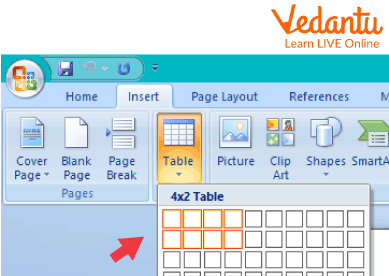
Selecting Table Size:
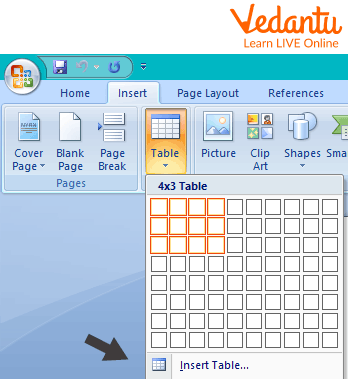
Inserting Rows and Columns:
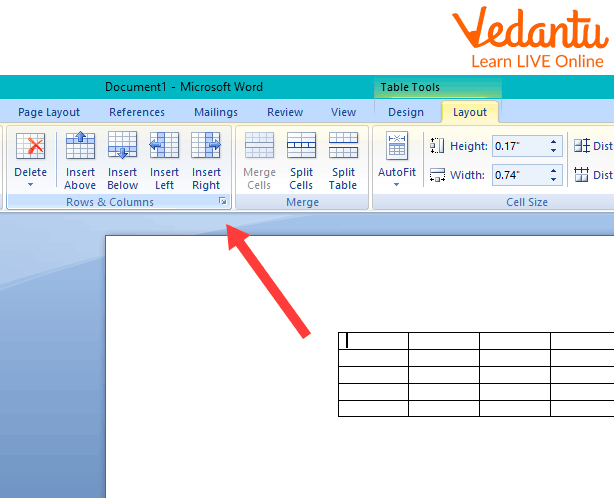
Deleting Rows and Columns:
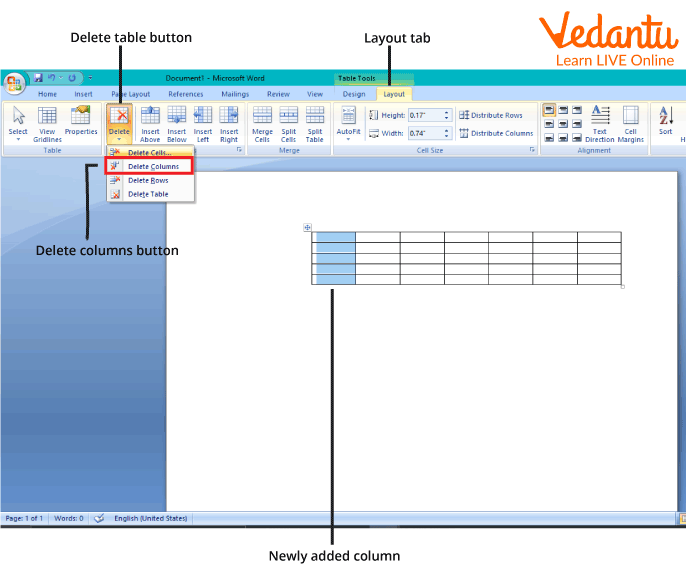
Types and Classification
MS Word provides different methods to create tables based on user requirements.
- Grid Table - Created by selecting rows and columns from the grid under the Insert tab.
- Insert Table Dialog Box - Allows manual entry of the number of rows and columns.
- Draw Table - Users can draw custom table structures using a pencil tool.
- Quick Tables - Pre designed table templates for calendars, lists, and schedules.
- Convert Text to Table - Converts selected text into a table using separators like commas or tabs.
Features and Characteristics
- Easy insertion and deletion of rows and columns.
- Automatic formatting using built in table styles.
- Support for merging and splitting cells.
- Sorting data within tables.
- Ability to apply borders, shading, and alignment.
- Integration with formulas for simple calculations.
Advantages
- Improves data organization and clarity.
- Enhances document presentation.
- Saves time in formatting structured data.
- Supports easy editing and customization.
- Useful for academic, business, and technical documentation.
Disadvantages and Limitations
- Large tables may reduce document readability.
- Limited advanced calculation features compared to spreadsheets.
- Formatting may become complex in highly detailed tables.
- Difficult to manage very large datasets efficiently.
Applications and Use Cases
- Creating school and college project reports.
- Preparing business invoices and schedules.
- Designing timetables and attendance sheets.
- Presenting statistical data in documents.
- Organizing comparison charts and summaries.
Quick Facts About Creating Tables in MS Word
| Category | Details |
|---|---|
| Software | Microsoft Word |
| Introduced In | Early versions of MS Word |
| File Extension | .doc, .docx |
| Used For | Organizing structured data in documents |
| Key Feature | Row and column based data arrangement |
These facts highlight the basic details related to creating tables in MS Word and their usage in document preparation.
Interesting Facts About Creating Tables in MS Word
- MS Word allows insertion of tables up to 63 columns in a single table.
- Tables can include formulas similar to basic spreadsheet calculations.
- Users can convert tables back into plain text.
- Pre designed Quick Tables save time in document formatting.
- Tables can be nested inside other tables.
- Sorting features allow alphabetical or numerical arrangement of data.
Conclusion
Creating tables in MS Word is a fundamental skill for organizing and presenting structured data effectively. It enables users to arrange information in a clear and professional format suitable for academic, business, and technical documents. Understanding the features, types, and working of tables helps improve document management and productivity. Mastering this topic strengthens practical computer skills and enhances the overall quality of digital documentation in computer science and everyday applications.
FAQs on Creating Tables in MS Word for Structured Documents
1. What is creating tables in MS Word?
Creating tables in MS Word means organizing data into rows and columns to present information in a structured format within a document.
- Tables consist of rows, columns, and cells
- Used for reports, data comparison, timetables, and documentation
- Commonly applied in school projects, office work, and exam preparation
2. How do you create a table in MS Word?
You can create a table in MS Word using the Insert tab and selecting the required number of rows and columns.
- Go to Insert → Table
- Select grid size or choose Insert Table
- Define number of rows and columns
- Click OK to generate the table
3. What are the different methods to create tables in MS Word?
MS Word provides multiple methods to create tables depending on formatting and data requirements.
- Insert Table option
- Draw Table tool for custom layout
- Convert Text to Table feature
- Quick Tables templates
- Insert Excel Spreadsheet inside Word
4. What are the main components of a table in MS Word?
A table in MS Word is made up of structured components that help organize data efficiently.
- Rows – horizontal arrangement of cells
- Columns – vertical arrangement of cells
- Cells – intersection of rows and columns
- Table gridlines – visual structure boundaries
5. How can you format and customize tables in MS Word?
You can format tables in MS Word using the Table Design and Layout tools to improve appearance and readability.
- Apply Table Styles
- Change border and shading
- Adjust row height and column width
- Merge or split cells
- Align text inside cells
6. How do you convert text into a table in MS Word?
MS Word allows you to convert structured text into a table using separators like commas or tabs.
- Select the text
- Click Insert → Table → Convert Text to Table
- Choose separator such as Tabs, Commas, or Paragraphs
- Click OK to create the table
7. What are the advantages of using tables in MS Word?
Using tables in MS Word improves data organization, readability, and professional document formatting.
- Structured data presentation
- Easy comparison of information
- Improved document layout
- Useful for reports, forms, and academic assignments
8. What are the limitations or disadvantages of tables in MS Word?
While tables in MS Word are useful, they have some limitations compared to spreadsheet software.
- Limited advanced calculations compared to MS Excel
- Complex formatting may become difficult in large tables
- Performance may slow with very large datasets
9. What is the difference between tables in MS Word and MS Excel?
Tables in MS Word are mainly for document formatting, while MS Excel tables are designed for data analysis and calculations.
- Word focuses on document layout and text formatting
- Excel supports formulas, functions, and data analysis tools
- Excel is better for large datasets and computations
10. Why is creating tables in MS Word important for exams and interviews?
Creating tables in MS Word is an important computer skills topic frequently asked in school exams, competitive exams, and basic computer interviews.
- Common in computer fundamentals syllabus
- Tests practical knowledge of MS Office tools
- Useful skill for documentation and professional work