


How to Use Shape Tool in MS Paint Step by Step with Types and Examples
The Shape Tool in MS Paint is a simple yet powerful feature that allows users to draw different geometric figures easily. It is widely used in schools and basic computer learning to create diagrams, charts, and illustrations. In computer science education, understanding the Shape Tool helps students learn about digital graphics, drawing tools, and basic image editing. It provides ready-made shapes such as rectangles, circles, arrows, and lines that can be inserted and customized with colors, outlines, and fills. This tool makes drawing precise shapes quick and accurate without requiring advanced design skills.
Definition and Meaning
Shape Tool in MS Paint definition: The Shape Tool is a feature in Microsoft Paint that allows users to insert predefined geometric shapes into a drawing canvas.
- It is used to draw shapes like rectangles, circles, lines, arrows, and polygons.
- It is part of the Tools group in the Home tab of MS Paint.
- It helps in creating neat and accurate diagrams.
- It supports both outline and fill color customization.
How It Works - Working Principle
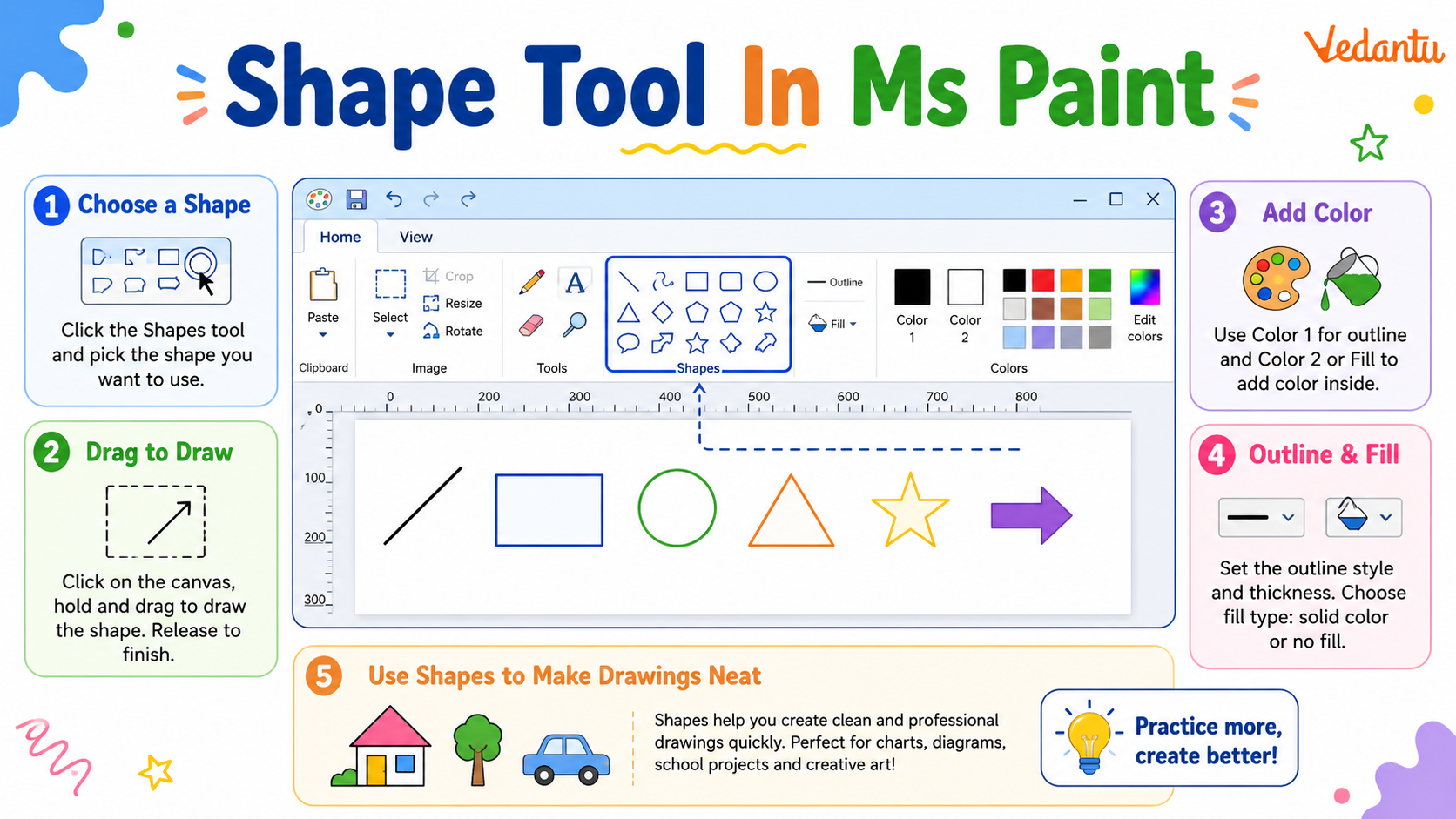
The Shape Tool in MS Paint working is based on selecting a predefined shape and drawing it on the canvas by dragging the mouse. It allows resizing, coloring, and formatting of shapes instantly.
- Open MS Paint from the Start menu.
- Click on the Home tab and locate the Shapes group.
- Select the desired shape such as rectangle or oval.
- Click and drag the mouse on the canvas to draw the shape.
- Choose outline color, fill color, and size from the options provided.
- Release the mouse button to finalize the shape.
The tool uses basic graphic rendering techniques to create vector-like shapes that can be resized and modified before final placement.
Types and Classification
There are several Shape Tool types available in MS Paint. These shapes are categorized based on their geometry and function.
Types of Shapes in MS Paint
| Shape Type | Description | Example Use |
|---|---|---|
| Basic Shapes | Simple geometric figures | Rectangle, Oval |
| Line Shapes | Straight or curved lines | Line, Curve |
| Arrows | Directional shapes | Right Arrow, Left Arrow |
| Callouts | Shapes for text display | Speech Bubble |
These different types allow users to create diagrams, flowcharts, and creative drawings easily.
Features and Characteristics
- Predefined geometric shapes for quick drawing.
- Customizable outline size and color.
- Option to apply solid fill, no fill, or crayon effect.
- Easy resizing before final placement.
- Supports combination with other tools like Text and Brush.
- User friendly interface suitable for beginners.
Advantages
- Makes drawing accurate and neat.
- Saves time compared to freehand drawing.
- Simple and easy to use for students.
- Helpful for creating diagrams and charts.
- Requires no advanced graphic design knowledge.
Disadvantages / Limitations
- Limited number of shapes compared to professional design software.
- No advanced editing like rotation at custom angles in older versions.
- Basic fill and formatting options only.
- Not suitable for complex graphic design tasks.
Applications and Use Cases
The Shape Tool in MS Paint applications are mainly seen in education and basic design work.
- Drawing geometric figures in mathematics.
- Creating simple flowcharts and diagrams.
- Designing greeting cards and posters.
- Making school project illustrations.
- Basic image annotation using arrows and callouts.
Quick Facts About Shape Tool In MS Paint
| Feature | Details |
|---|---|
| Software | Microsoft Paint |
| Category | Graphics Editing Tool |
| Platform Support | Windows Operating System |
| Used For | Drawing predefined shapes |
| Common Users | Students and Beginners |
These quick facts highlight the basic details about the Shape Tool in computer science learning.
Interesting Facts About Shape Tool In MS Paint
- The Shape Tool was introduced in early versions of Microsoft Paint.
- Holding the Shift key while drawing creates perfect squares or circles.
- Shapes can be combined with the Text tool for labeling diagrams.
- It supports both outline only and filled shapes.
- Shapes can be resized before selecting another tool.
- It is commonly used in primary computer education classes.
Conclusion
The Shape Tool in MS Paint is an essential feature for creating clean and accurate drawings in basic graphic editing. It simplifies the process of inserting geometric figures and enhances digital creativity for students and beginners. Understanding its working, types, and features builds a strong foundation in computer graphics and image editing. Though simple, it plays an important role in computer science education and everyday digital tasks.
FAQs on Shape Tool in MS Paint Explained with Features and Uses
1. What is the Shape Tool in MS Paint?
The Shape Tool in MS Paint is a drawing feature that allows users to create predefined geometric shapes quickly and accurately. It is part of the graphics editing software MS Paint, included in the Windows operating system, and is widely used in basic computer education and digital design tasks.
- Used to draw rectangles, circles, lines, arrows, and polygons
- Helps create clean and precise shapes
- Commonly used in school projects and beginner-level graphic design
2. Where is the Shape Tool located in MS Paint?
The Shape Tool is located in the Home tab of the MS Paint ribbon interface under the Shapes group. It provides a collection of ready-made shapes for quick drawing and editing.
- Open MS Paint
- Click on the Home tab
- Select a shape from the Shapes section
3. How does the Shape Tool work in MS Paint?
The Shape Tool works by allowing users to select a predefined shape and draw it on the canvas using mouse drag operations. The software automatically generates clean geometric outlines based on user input.
- Select a shape
- Click and drag the mouse on the canvas
- Release the mouse to create the shape
- Customize outline and fill colors
4. What are the different types of shapes available in MS Paint?
MS Paint provides multiple types of shapes to support basic graphic design and diagram creation tasks. These shapes help users create structured visual content easily.
- Rectangle and rounded rectangle
- Oval and circle
- Line and curve
- Triangle and polygon
- Arrows and callouts
5. How can you change the outline and fill color of shapes in MS Paint?
You can customize the outline and fill color of shapes using the Color palette and Fill options in MS Paint. This enhances the visual appearance of graphics and diagrams.
- Select a shape
- Choose Outline option and pick a color
- Select Fill option such as solid color or no fill
- Apply colors before or after drawing the shape
6. What are the main features of the Shape Tool in MS Paint?
The Shape Tool features make MS Paint a simple yet effective graphics editing software for beginners. It supports easy drawing and customization of geometric objects.
- Predefined geometric shapes
- Adjustable outline thickness
- Color customization
- Resize and reposition functionality
- User-friendly graphical interface
7. What are the advantages and disadvantages of using the Shape Tool in MS Paint?
The Shape Tool in MS Paint offers simplicity and ease of use but has limited advanced graphic design capabilities compared to professional software.
- Advantages: Easy to use, beginner-friendly, quick drawing of shapes
- Advantages: Integrated with Windows operating system
- Disadvantages: Limited advanced editing features
- Disadvantages: No support for vector-based precision editing
8. How is the Shape Tool in MS Paint different from vector graphic tools?
The Shape Tool in MS Paint creates raster graphics, while vector graphic tools like Adobe Illustrator create scalable vector images. Raster shapes may lose quality when resized.
- MS Paint uses bitmap or raster format
- Vector tools use mathematical equations for shapes
- Vector graphics scale without losing quality
9. What are the applications of the Shape Tool in MS Paint?
The applications of the Shape Tool include creating simple diagrams, charts, and educational illustrations in computer science and school projects.
- Drawing flowcharts and block diagrams
- Creating basic UI mockups
- Designing greeting cards and posters
- Practicing basic graphic design skills
10. Why is the Shape Tool important for students and exam preparation?
The Shape Tool in MS Paint is important for students because it builds foundational skills in graphics software, user interface tools, and basic computer operations often asked in school and competitive exams.
- Common topic in computer fundamentals syllabus
- Helps in practical lab exams
- Introduces concepts of raster graphics and digital drawing tools