


How to Use Find and Replace in MS Word with Steps Shortcut Keys and Examples
Search and Replace Text in MS Word is an essential feature that helps users quickly locate specific words, phrases, or formatting styles in a document and replace them efficiently. In computer applications, especially word processing, this feature saves time and reduces manual editing errors. Whether you are correcting spelling mistakes, updating repeated information, or changing formatting across a long document, the search and replace function improves productivity. Understanding how Search and Replace Text in MS Word works is important for students, professionals, and anyone who handles digital documents regularly.
Definition and Meaning
Search and Replace Text in MS Word is a built in tool that allows users to find specific text, numbers, symbols, or formatting in a document and automatically replace them with new content.
- Search - Locates a word, phrase, or formatting style within a document.
- Replace - Substitutes the found content with new text or formatting.
- Navigation Pane - A panel that displays search results in a structured format.
- Find and Replace Dialog Box - A window used to enter search terms and replacement text.
How It Works - Working Principle
The Search and Replace Text in MS Word working process is based on pattern matching. MS Word scans the entire document to identify text that matches the entered keyword or formatting. Once identified, the software allows users to replace individual occurrences or all instances at once.
- Open the MS Word document.
- Go to the Home tab.
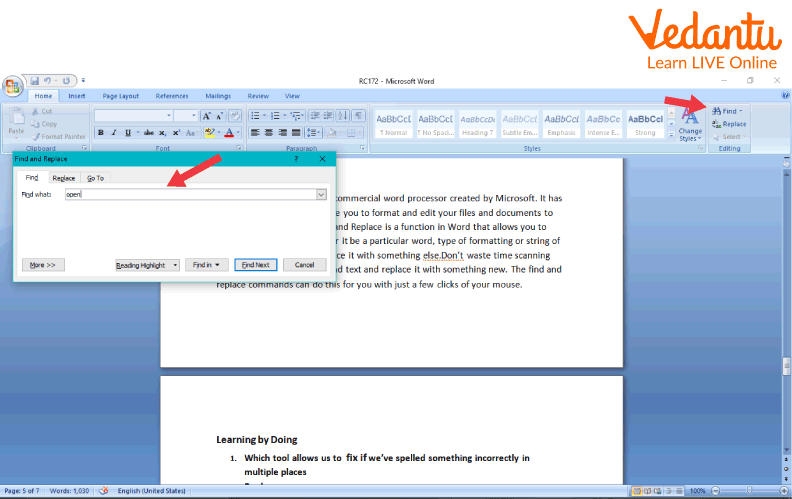
- Click on Find to search text or press Ctrl + F.
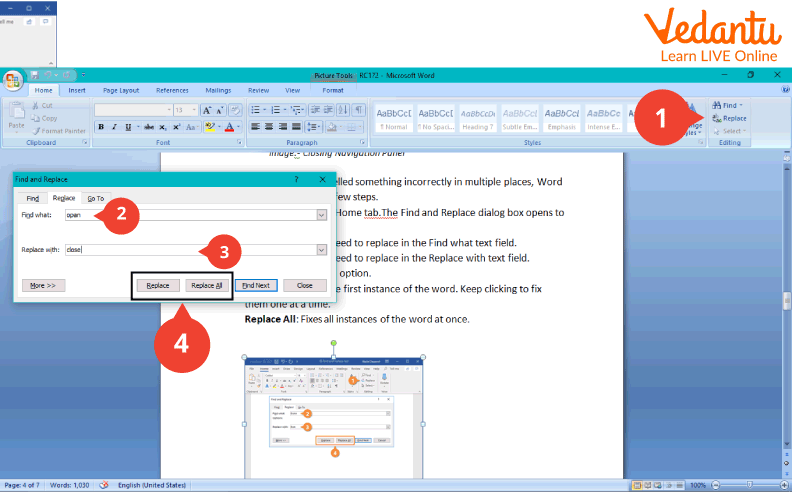
- Use Replace or press Ctrl + H to open the Find and Replace dialog box.
- Enter the word in the Find what field.
- Enter the new word in the Replace with field.
- Click Replace for one instance or Replace All for all occurrences.
MS Word Interface:

Searching in Navigation Panel:
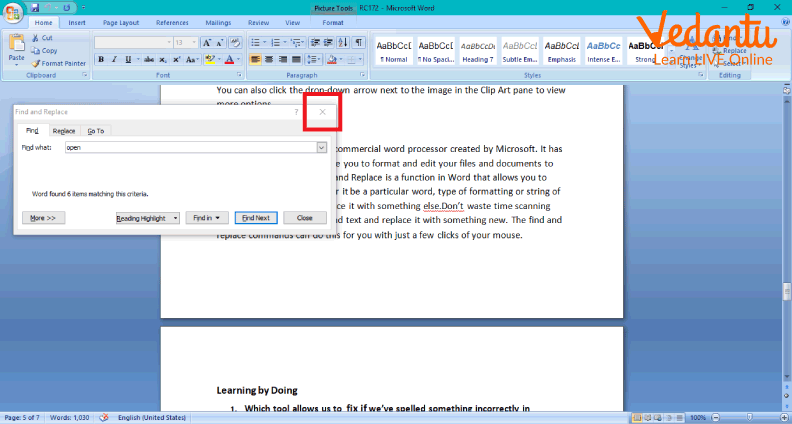
Closing Navigation Panel:
Replacing Text:
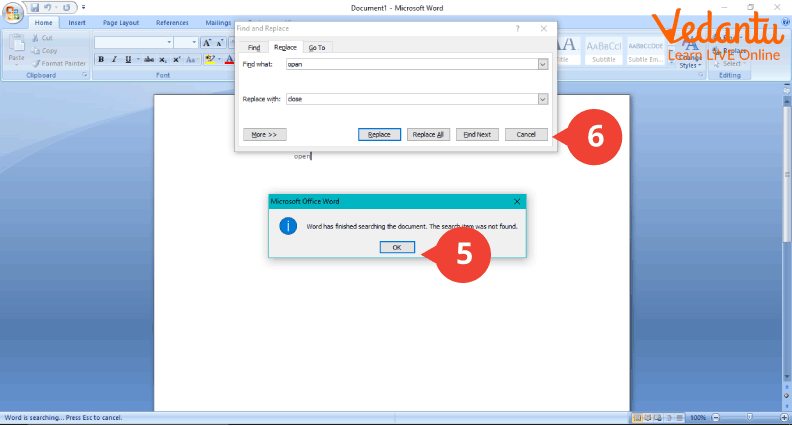
Closing Dialog Box:
Inserting a Clipart:

Types and Classification
- Basic Search - Finds simple words or phrases in a document.
- Advanced Search - Allows searching with case sensitivity, whole words only, or special characters.
- Format Based Replace - Replaces specific formatting such as bold, italic, or font style.
- Wildcard Search - Uses pattern matching to find complex text combinations.
Features and Characteristics
- Quick keyboard shortcuts like Ctrl + F and Ctrl + H.
- Option to replace text individually or all at once.
- Supports searching for special characters and symbols.
- Allows matching uppercase and lowercase letters.
- Provides navigation panel preview.
Advantages
- Saves time when editing long documents.
- Reduces manual typing errors.
- Improves document consistency.
- Easy to use and beginner friendly.
Disadvantages / Limitations
- Incorrect use of Replace All may change unintended text.
- Wildcards and advanced options may be confusing for beginners.
- May not detect context based differences automatically.
Applications and Use Cases
- Correcting spelling mistakes across assignments.
- Updating company names or dates in official documents.
- Formatting academic research papers.
- Editing reports and business letters.
- Preparing newsletters and publications.
Quick Facts About Search And Replace Text In MS Word
| Category | Details | Shortcut |
|---|---|---|
| Software Type | Word Processing Feature | - |
| Search Command | Find Tool | Ctrl + F |
| Replace Command | Find and Replace Tool | Ctrl + H |
These shortcuts make the Search and Replace Text in MS Word feature quick and efficient for everyday document editing.
Interesting Facts About Search And Replace Text In MS Word
- It can replace formatting such as font size and color without changing the text.
- Supports wildcard characters for advanced pattern matching.
- Works in large documents with hundreds of pages.
- Can search for special characters like paragraph marks.
- Widely used in academic and corporate environments.
- Improves editing efficiency significantly.
Conclusion
Search and Replace Text in MS Word is a powerful editing feature that simplifies document management and improves productivity. By understanding its working, types, features, and applications, users can efficiently modify large amounts of text with accuracy. This tool plays an important role in digital documentation, academic writing, and professional communication. Mastering this feature enhances overall computer literacy and helps users work smarter with word processing software.


FAQs on Search And Replace Text In MS Word Explained for Beginners
1. What is Search and Replace Text in MS Word?
Search and Replace Text in MS Word is a feature that allows users to find specific words, phrases, or formatting and replace them automatically throughout a document.
- Part of the Editing tools in Microsoft Word
- Helps in quick text correction and content modification
- Commonly used in document editing, report writing, and exam preparation
2. How does the Search and Replace feature work in MS Word?
The Search and Replace feature works by scanning the document for a specified keyword and replacing it with new text based on user input.
- Open using Ctrl + H shortcut
- Enter text in the Find what field
- Enter replacement text in the Replace with field
- Click Replace or Replace All
3. What is the difference between Find and Replace in MS Word?
The Find option locates specific text, while Replace locates and changes the text automatically.
- Find (Ctrl + F) only searches for text
- Replace (Ctrl + H) searches and modifies text
- Replace is useful for bulk editing tasks
4. What are the advanced options available in Search and Replace?
MS Word provides advanced Search and Replace options to refine text matching and formatting changes.
- Match case for case-sensitive search
- Find whole words only option
- Use wildcards for pattern matching
- Search and replace formatting, fonts, styles
5. How can you search and replace formatting in MS Word?
You can search and replace formatting by using the Format option in the Replace dialog box.
- Open Replace (Ctrl + H)
- Click More > Format
- Select font, paragraph, or style formatting
- Replace old formatting with new formatting
6. What are wildcards in MS Word Search and Replace?
Wildcards are special characters used in Search and Replace to find text patterns instead of exact words.
- Enable Use wildcards option
- Useful for pattern-based text editing
- Common in advanced document processing and data cleaning
7. What are the advantages of using Search and Replace in MS Word?
Search and Replace improves efficiency by automating repetitive text editing tasks in digital documents.
- Saves time in large documents
- Reduces manual editing errors
- Useful in academic, business, and technical documentation
- Enhances productivity in word processing software
8. What are the limitations or disadvantages of Search and Replace?
Search and Replace may cause unintended changes if used without proper review.
- May replace text in incorrect context
- Bulk replacement can introduce errors
- Requires careful verification after using Replace All
9. How is Search and Replace useful for students and exam preparation?
Search and Replace is important for computer practical exams and document editing tasks in school and competitive exams.
- Frequently asked in MS Office practical exams
- Tests knowledge of keyboard shortcuts and editing tools
- Useful in project documentation and assignments
10. Can Search and Replace be used in programming or other software tools?
Yes, the Search and Replace concept is widely used in programming editors, IDEs, and database management systems.
- Available in code editors like VS Code and Notepad++
- Used for modifying variables, functions, and syntax
- Helps in refactoring and debugging source code